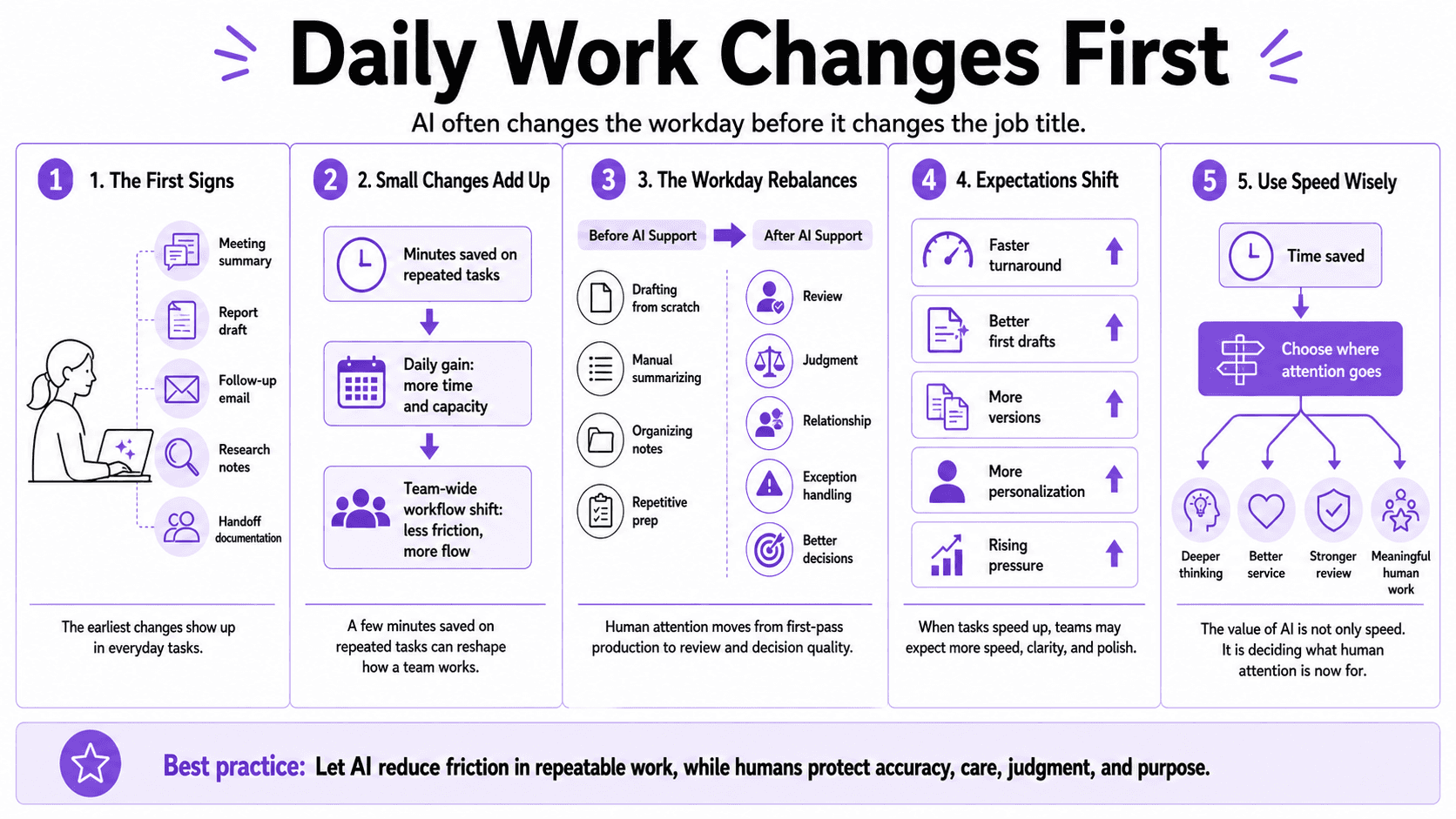
In this lesson, we will look at how AI can reshape the workday before it changes a person’s job title. The first signs are usually small: a faster meeting summary, a cleaner first draft, a quicker research scan, or a report that takes minutes instead of hours. At first, these changes may not feel dramatic. But when they happen across a team, they begin to affect how work moves, how time is used, and what people expect from one another.
Change often starts with ordinary tasks. The weekly report gets easier to prepare. The meeting notes are ready before people leave the room. A rough email becomes a clear draft in seconds. A manager can review three versions of a message instead of waiting for one. None of this changes the name of the job, but it does change the rhythm of the job.
Small time savings can add up quickly. A person may save ten minutes on one task and thirty minutes on another. Across a week, that can create real space. Across a team, it can change who does what, when work gets finished, and how quickly the next step begins. The risk is that saved time gets filled immediately with more tasks, more requests, and more pressure.
As AI speeds up routine work, the human part of the day becomes more important. People spend less time starting from a blank page and more time checking whether the work is accurate, useful, and appropriate. The work shifts toward review, judgment, problem-solving, and relationship-building. The question is no longer only, “How fast can we make this?” The better question is, “Where does our attention matter most?”
This change can make the day feel busier, not easier. When tasks are faster to start, people may start more of them. A team member may draft a plan, summarize a call, compare options, and prepare follow-up messages in the same hour. That can help the team move forward. It can also create more switching, more reviewing, and more mental strain if no one slows down to decide what matters most.
Expectations also begin to shift. When a first draft is easy to create, people may expect stronger first drafts. When summaries are faster, people may expect them sooner. When it is simple to make different versions of a message, people may expect more detail, more polish, and more personal touches. Speed can become the new baseline unless the team is clear about how that speed should be used.
A simple workplace example makes this clear. A team that once spent half a day preparing a client update now uses AI to create the first draft in twenty minutes. That sounds like a clean win, but the real work is not finished. Someone still has to check the facts, remove anything that sounds off, make sure the message fits the client, and decide what should be said next. The work did not disappear. It moved.
The goal is to notice these shifts early. Teams should pay attention to which tasks are getting faster, where saved time is going, and whether quality is improving or only volume is rising. AI can help people prepare, draft, summarize, and organize. But the value comes from using that speed with care. The workday changes first, and the best teams choose what those changes mean.